
Feide login with Passkeys#
Passkeys is a login method that uses the WebAuthn standard to provide passwordless authentication. It allows users to log in using biometric data (like fingerprint or facial recognition) or a device PIN, depending on their device configuration. Passkeys can be stored on various devices, including smartphones, tablets, hardware keys and computers. To use passkeys as a Feide login method, the organization must enable it in Feide’s customer portal. This is done by editing the login methods on the organization tab.
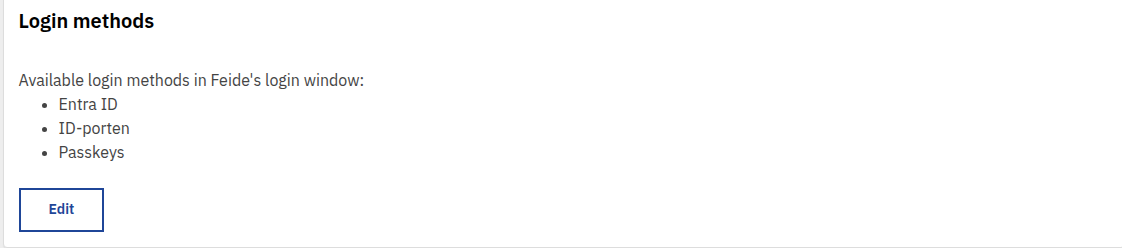
Then check off “Passkeys.”

To save the change, click on Save at the bottom of the page.
It may take up to 10 minutes before the login with Passkeys is available as an option in the organization Feide’s login window.
Passkeys as strong authentication#
Authentication with Passkeys can be considered as strong authentication if the user used strong authentication when registering the Passkey. This also means that passkeys can be used as a second factor, when using another type of login or when step-up authentication is required.
Technical details to consider before using passkeys as a login method#
Passkeys require that the user’s device supports WebAuthn. Most modern devices and browsers support this standard, but some older devices may not.
Consider where you’ll need to access your account when creating passkeys. You can create device-bound passkeys that only work on a single device, or use a provider with passkey syncing (such as Apple, Google, or password managers) to create passkeys that work across all your devices.
If a user loses access to their device and has not set up alternative authentication methods, they may be locked out of their account. It is advisable to have backup authentication methods in place and not only rely on a single device/passkey.
Passkeys rely on public-key cryptography. Your device stores the private key, and Feide stores each passkey’s public key along with a credential identifier that links it to your account.
Depending on the device, browser, and operating system, the user experience for registering and using passkeys may vary and is out of Feide’s control.
Administration of passkeys by users#
Users can register and manage their passkeys through their browser on innsyn.feide.no. They can add new passkeys, remove old ones, change the name of the passkey, see when it was created and last used.
To register a passkey click on “Create passkey” and follow the instructions provided by the browser. The user may be prompted to use biometric data or a device PIN to complete the registration.

After registering, the user will be able to use the passkey to log in to Feide by clicking on the “Login with passkey” option in Feide’s login window and following the prompts from their browser.
Passkey Administration API#
For organizations that need programmatic access to manage passkeys on behalf of their users, Feide provides a REST API. This allows automated systems to list and delete passkeys for users within the organization. Creating passkeys can only be done by the users themselves through innsyn.feide.no.
Getting Access#
To use the Passkey Administration API:
Register a service in the Feide Customer Portal
Apply for access to the “Feide administrasjons-API” datasource for your service
Once approved, your service will be mapped to your organization(s) — identified by the organization ID from the Customer Portal
You’ll be able to use your OAuth credentials (client_id and client_secret) to obtain tokens
Authentication#
The API uses JWT authentication with OAuth 2.0 scopes. To authenticate:
Obtain an access token from Feide using your OAuth credentials
Exchange the access token for a JWT token with the required passkey scopes
Include the JWT in the Authorization header of your API requests
The JWT token contains an act claim with your service’s customer_portal_id, which the API uses to determine which organizations your service is authorized to manage.
For detailed instructions on OAuth authentication with Feide, see client credentials flow and JWT Token Exchange.
Example token exchange:
# Get access token
curl -X POST https://auth.dataporten.no/oauth/token \
  -u "<YOUR_CLIENT_ID>:<YOUR_CLIENT_SECRET>" \
  -H "Content-Type: application/x-www-form-urlencoded" \
  -d grant_type=client_credentials

# Exchange for JWT with passkey scopes
curl -X POST https://auth.dataporten.no/oauth/token \
  -u "<YOUR_CLIENT_ID>:<YOUR_CLIENT_SECRET>" \
  -H "Content-Type: application/x-www-form-urlencoded" \
  -d "grant_type=urn:ietf:params:oauth:grant-type:token-exchange" \
  -d "subject_token=<ACCESS_TOKEN>" \
  -d "subject_token_type=urn:ietf:params:oauth:token-type:access_token" \
  -d "requested_token_type=urn:ietf:params:oauth:token-type:jwt" \
  -d "audience=https://n.feide.no/datasources/d74b449f-857f-491d-96fe-32bfe044614b" \
API Endpoints#
All endpoints are available under https://api.feide.no/2/passkey/
For information on the available endpoints and their usage, see passkey management API reference.